0. Launch the desktop app
LedgerBridge runs as a native desktop app (Tauri + Rust core) on Windows.

LedgerBridge
Import raw bank data, apply rules, validate against QuickBooks-specific checks, and export clean QBO/IIF/CSV files.
LedgerBridge runs as a native desktop app (Tauri + Rust core) on Windows.
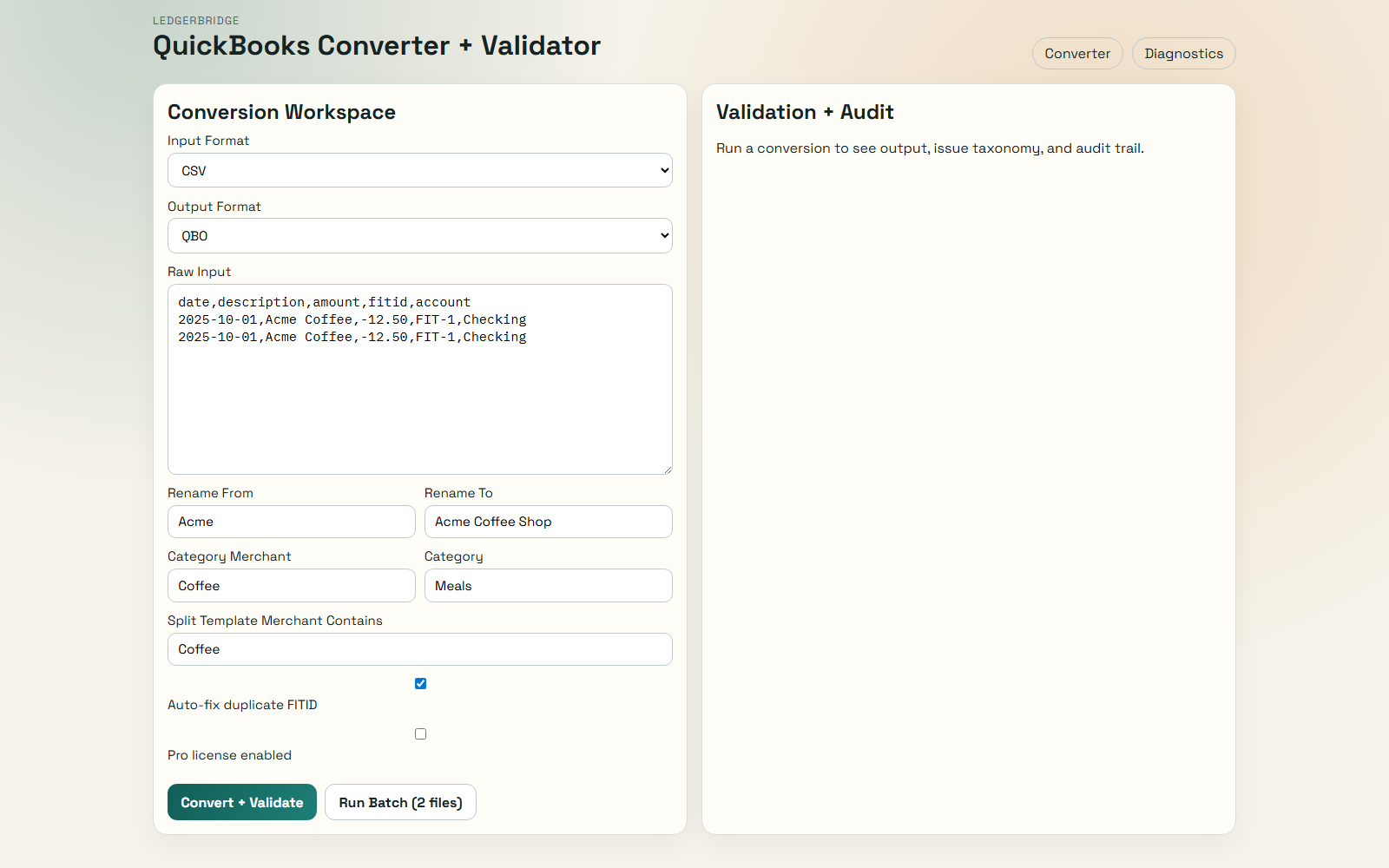
Select input/output formats, paste or load file data, and define rename/category/split rules.
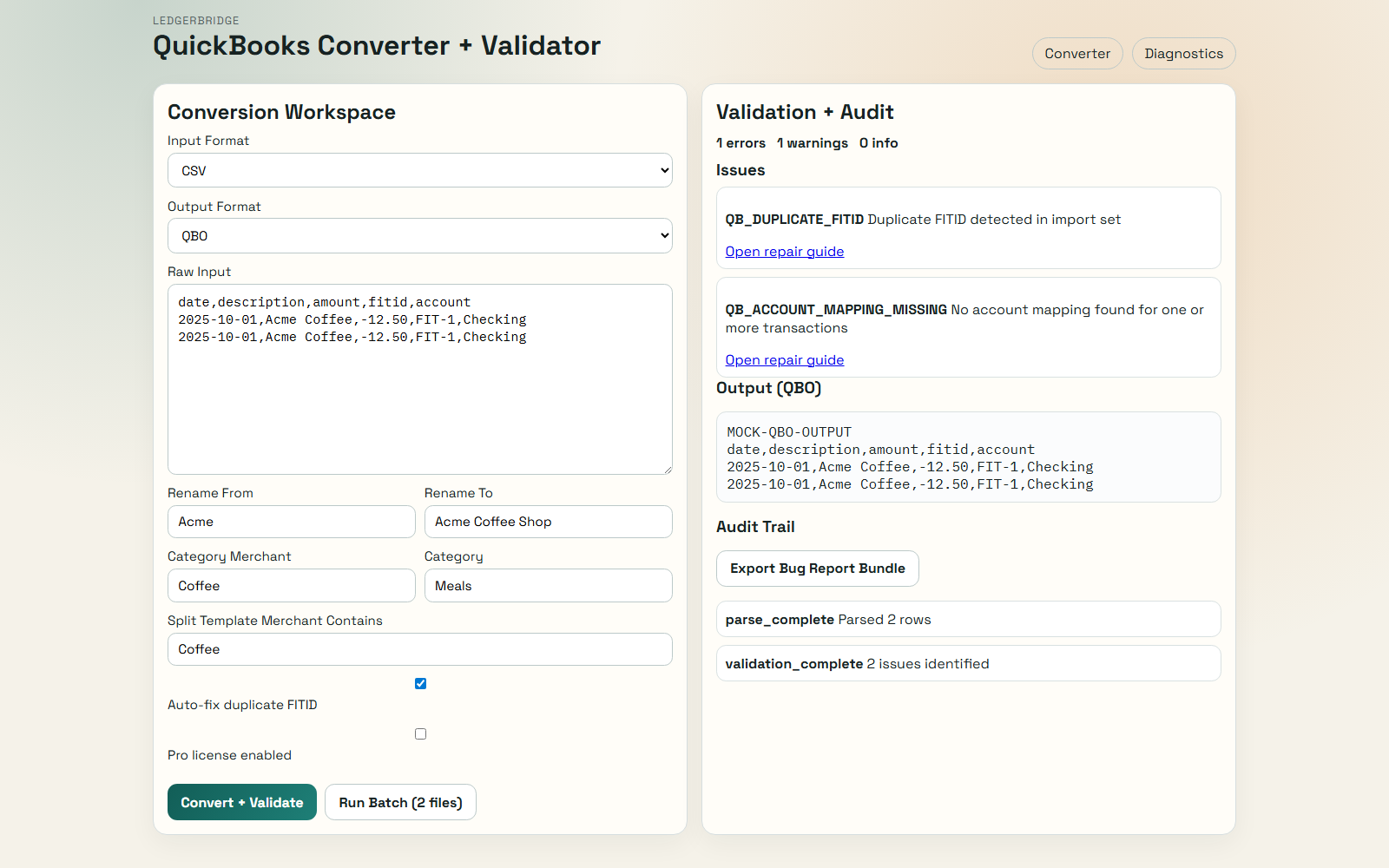
See duplicate FITID, date normalization, account mapping, and schema issues with direct repair links.
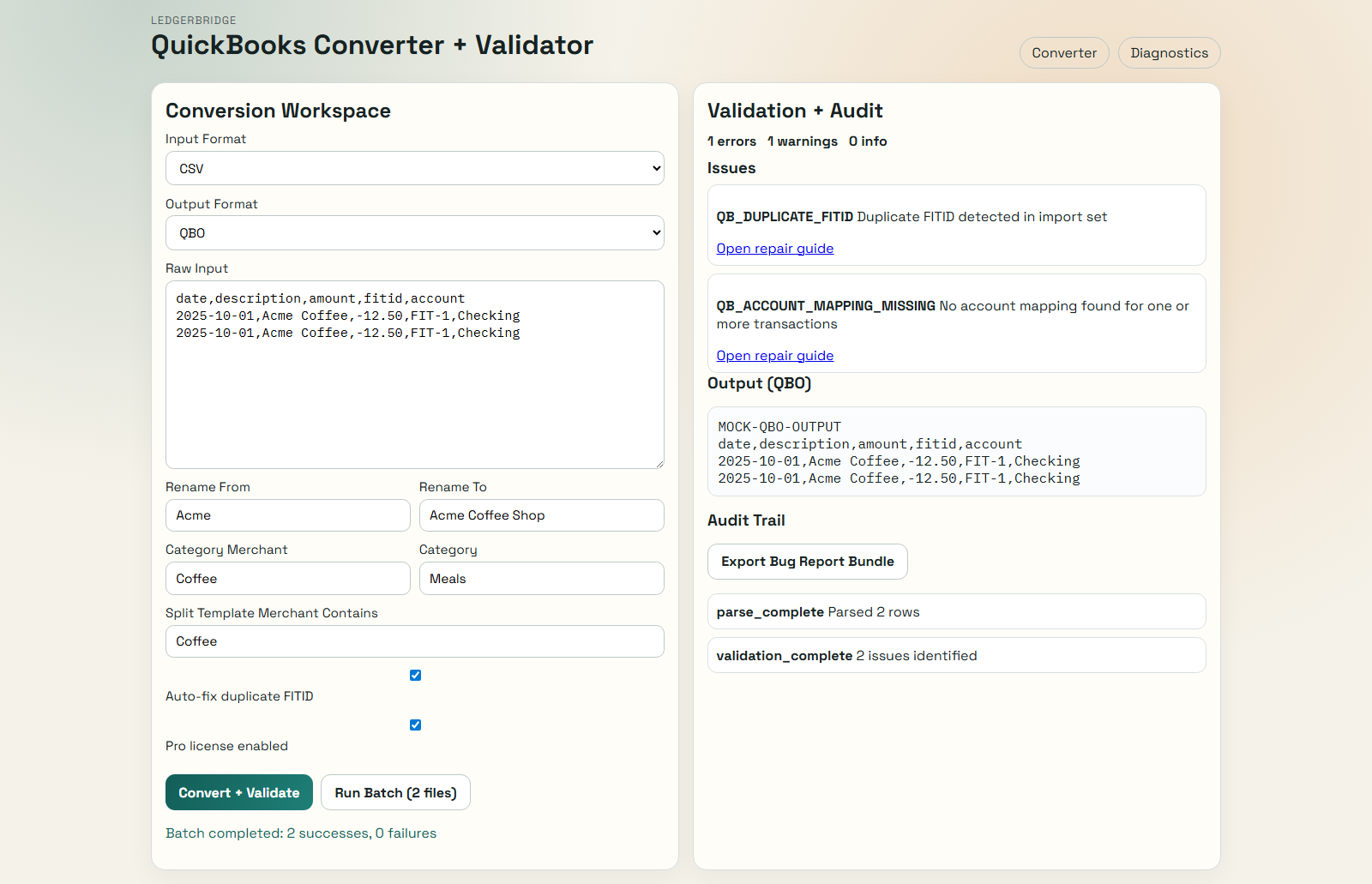
Process multiple files using reusable profiles for high-volume bookkeeping workflows.
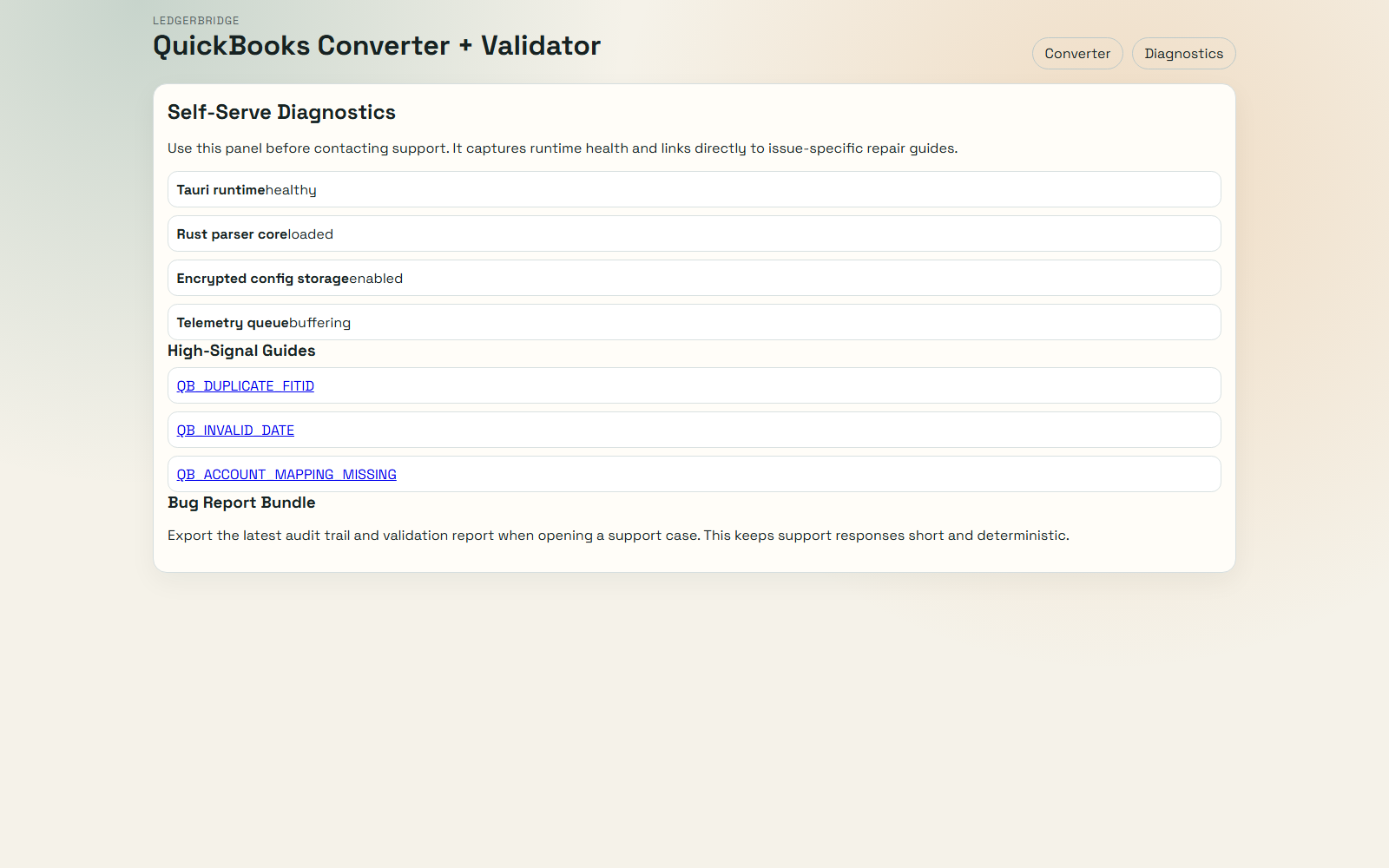
Use self-serve diagnostics and export bug bundles to minimize support back-and-forth.
Download the installer to run this exact workflow.